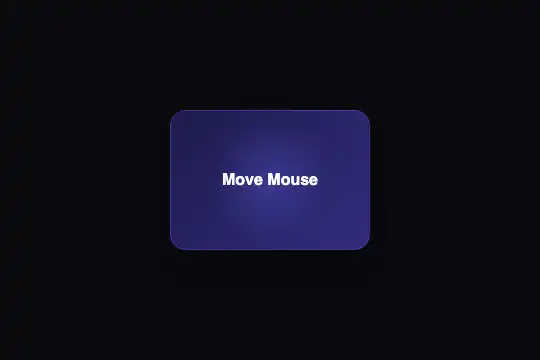
AR Object Placer
A 40 px purple object floats above a 6 × 3 grid tilted in perspective, like an augmented reality app that has just "found the floor"; a click or a tap on a cell sets it down there (it glides, stops floating, the cell lights up), another click lifts it, and the arrow keys move it from cell to cell. An interactive illustration: no camera, no real 3D object.
Updated

This effect is part of Effect.Labs — 840 vanilla effects, some free, some premium. 3D has 50 effects, including 8 free. Explore the category →
3 usage examples



How it works
The root .fx-0044-root (#0a0a0f background, at least 300 px tall) holds the .xr-ar-placer frame (full width × 300 px, dark gradient, perspective: 500px). At the bottom, the .xr-ar-surface covers 90% of the width and 40% of the height, split into a 6 × 3 grid with indigo lines and a dotted top edge; rotateX(45deg) from its bottom edge lays it down like a floor, and the frame's perspective makes it recede upward. Above it, the .xr-ar-object, a 40 px square with a #6366f1 → #a855f7 gradient, floats 10 px up and down over 3 s (fx0044Float) at 40% from the bottom of the frame.
The script starts one instance per frame found under a .fx-0044-root root. A click on a cell reads its position on screen (getBoundingClientRect, which accounts for the tilt and the perspective), then sets the bottom of the object on the center of the cell: left and bottom as a percentage of the frame, which stays correct if the frame is resized. The object glides in 0.45 s, stops floating (.is-placed), and the cell gets an indigo background (.is-target). A click on the placed object or on its cell lifts it: it goes back to floating at the center. Measured in Chromium 151, Firefox 153 and WebKit 26: after a click on cell 14, the object's center lands within 1 px of the cell's center, horizontally and vertically; a second click lifts it; the second copy of the effect stays untouched.
The frame takes keyboard focus: Enter or Space sets the object on the third cell of the middle row (or lifts it), the arrows move it from cell to cell without leaving the grid, Escape lifts it. With a finger, a tap on a cell sets the object down (measured with real touch events in Chromium). The crosshair cursor only appears over the grid, where a click does something. What the effect is not: it does not open the camera, detects no real floor, and the object is a flat square; it is the picture of an augmented reality app, not an augmented reality app.
Accessibility
- Keyboard: the frame is focusable, announced by its
aria-label(click a cell to set the object down, arrows to move it, Escape to lift it), with a 2 px purple outline on focus. Enter or Space sets down or lifts, arrows = one cell, Escape = lift. Measured in Chromium, Firefox and WebKit: Enter, → then ↓ set the object on cell 16. - Reduced motion: under
prefers-reduced-motion: reduce, a block scoped to.fx-0044-rootstops the floating and removes the transitions: the object waits still above the grid and lands at once on the chosen cell. Measured: 0 animations and 0% of pixels changed over 0.8 s in Chromium, Firefox and WebKit (0.3% without the preference); placement works the same. - What gets announced: the cells are empty
divelements; a screen reader only hears the frame'saria-label, not the chosen cell. If the position matters (the sofa against the wall, the chest in front of the fountain), also say it in text next to the frame, as the scenes above do. - Contrast: the object (indigo-purple gradient) stands out clearly from the dark background; the grid is deliberately faint (8% indigo lines), and the chosen cell goes to 35% so it shows. On a light background, darken the cell lines.
Browser compatibility
CSS (perspective, rotateX, CSS grid, transform animation) + 41 lines of JavaScript (click, keyboard, cell position), no dependencies. Measured in Chromium 151 and Firefox 153: floor tilted in perspective, object set at the center of the clicked cell, lifting, keyboard, two independent copies, stop under reduced motion; touch measured in Chromium. In WebKit 26, placement also lands at the cell's center, but Playwright's WebKit flattens all CSS 3D: the floor's tilt in Safari has not been verified on a real Safari.
Without JavaScript, the object floats above the grid and never lands: the illustration alone, which still holds. Without 3D transforms, the grid stays flat and upright under the object; a click on a cell still sets the object at its center.
The code
HTML structure to paste into your page (the CSS + JS come with your purchase):
<div class="fx-0044-root">
  <div class="xr-ar-placer" tabindex="0" role="group" aria-label="Object placement preview: …" style="width:100%;height:300px;">
    <div class="xr-ar-object"></div>
    <div class="xr-ar-surface">
      <div class="xr-ar-grid-cell"></div> … (18 cells: 6 columns × 3 rows)
    </div>
  </div>
</div>One-time payment, no subscription — the code is yours forever
Customize
Options passed to the API or data-* attributes:
| Option / property | Default | Effect |
|---|---|---|
Grid size (HTML — number of .xr-ar-grid-cell; CSS — grid-template-columns/rows; JS — COLS = 6) |
6 × 3 cells | For 8 × 4, put 32 cells in the HTML, repeat(8, 1fr) and repeat(4, 1fr) in the CSS, and COLS = 8 in the script: the arrows rely on that number to move from one row to the next. |
Floor tilt and depth (CSS — rotateX(45deg) on the surface, perspective on the frame) |
45°, 500 px perspective | 60° lays the floor down further (grazing view), 30° raises it (view from above). A shorter perspective (300 px) strengthens the recession. Placement follows, since the script reads the cells' real position on screen. |
Surface size and height (CSS — .xr-ar-surface) |
90% × 40% of the frame | A taller surface (60% and up) gives larger cells that are easier to tap on mobile; raise the waiting object (bottom of .xr-ar-object) so it stays above it. |
Object (CSS — .xr-ar-object) |
40 px square, #6366f1 → #a855f7 gradient | Draw your object in CSS (sofa, chest, magnet in the scenes, with ::before and ::after) or put an image inside. The bottom of the object lands on the cell's center: adjust its height so it "stands". |
Floating (CSS — @keyframes fx0044Float, 3s) |
10 px over 3 s | 4 px over 4 s gives an almost still object; 16 px over 2 s, a more impatient wait. The floating stops on its own once the object is placed. |
Chosen cell color (CSS — .xr-ar-grid-cell.is-target) |
35% indigo, purple line | Match it to the object (gold under the chest, white under the sofa in the scenes). Keep it clearly more visible than the other cells: it is the only sign that placement worked. |